Agent vs Edit mode — two AI postures, one click apart
Hydite ships two AI modes inside the editor: Agent for autonomous multi-step execution, Edit for surgical single-shot changes. Switch with one click in the status bar — and both honour Hydite High Privacy mode.
When you're coding, AI requests typically fall in two camps:
- "Just build the whole thing for me" — needs task breakdown, multi-file edits, command execution, test feedback.
- "Make this one line a bit better" — don't reason about 100 things; just fix the code under my cursor.
Stuffing both into the same chat box is a recipe for pain: ask for a small tweak and the AI rewrites half your project; ask it to take charge and it pings you on every line.
Hydite splits these into two distinct modes — Agent and Edit — toggled with one click in the editor's bottom-right status bar. They never get in each other's way.
1. The one-line difference#
| Aspect | Agent mode | Edit mode |
|---|---|---|
| Personality | Autonomous | Surgical |
| Scope | Whole project / multi-file / terminal | Current file / current selection |
| Steps | Loop: think → tool → observe → continue | One-shot: read context → emit diff |
| Tool use | Full: read/write files, run commands, MCP, sub-agents | Read-only: just enough context |
| Best for | New features, cross-file refactors, cross-module bugs, running tests | Renaming, optimising one function, adding types, writing a comment |
| Failure cost | Medium (multi-step can drift) | Low (diff in front of you, accept or discard) |
| Privacy | Honours Hydite High Privacy mode | Honours Hydite High Privacy mode |
Mnemonic: Agent is a colleague. Edit is your second hand at the keyboard.
2. Agent mode — let the AI drive#
Use this when you're willing to hand over a slice of time to the AI.
What it does#
- Plan first: outputs a plan with files to touch, commands to run, acceptance criteria.
- Multi-step execution: queries the semantic index, edits files, runs tests, reads logs, iterates until done.
- Parallel agents (optional): dispatches multiple agents into isolated Git worktrees that run side-by-side.
- Pause-able: interrupt / rollback / resume at any time.
Typical prompt#
1Refactor src/api/users from callbacks to async/await,2fill in the TypeScript types, and run the related tests.Agent will: scan the directory → list files → plan diffs → edit file by file → pnpm test → read output → fix red → report.
When not to use Agent#
- You only want to change one line / one function. Edit is faster, sharper, and cheaper on tokens.
- You already know exactly what you want; you don't need the AI to "think more".
3. Edit mode — your AI co-pilot#
Use this when you already know what to change and just want it written well.
What it does#
- Looks only at the current file / selection + necessary references. It will not wander into other parts of the repo.
- Emits a diff preview.
Cmd/Ctrl + Enterto accept,Escto discard. - No "let me run a command" or "let me read 50 more files" detours.
Typical prompt (invoked on a selection)#
1Make this function pure — don't mutate the arguments.1Extract this JSX into a <UserCard /> component.1Add full TS generics and JSDoc to this hook.Edit mode discipline#
- No new files: creating files goes through Agent.
- No commands: running tests / installing deps goes through Agent.
- No drift: it does what you asked — it doesn't "while I'm here" rewrite everything.
4. One-click switching — top-left of the IDE#
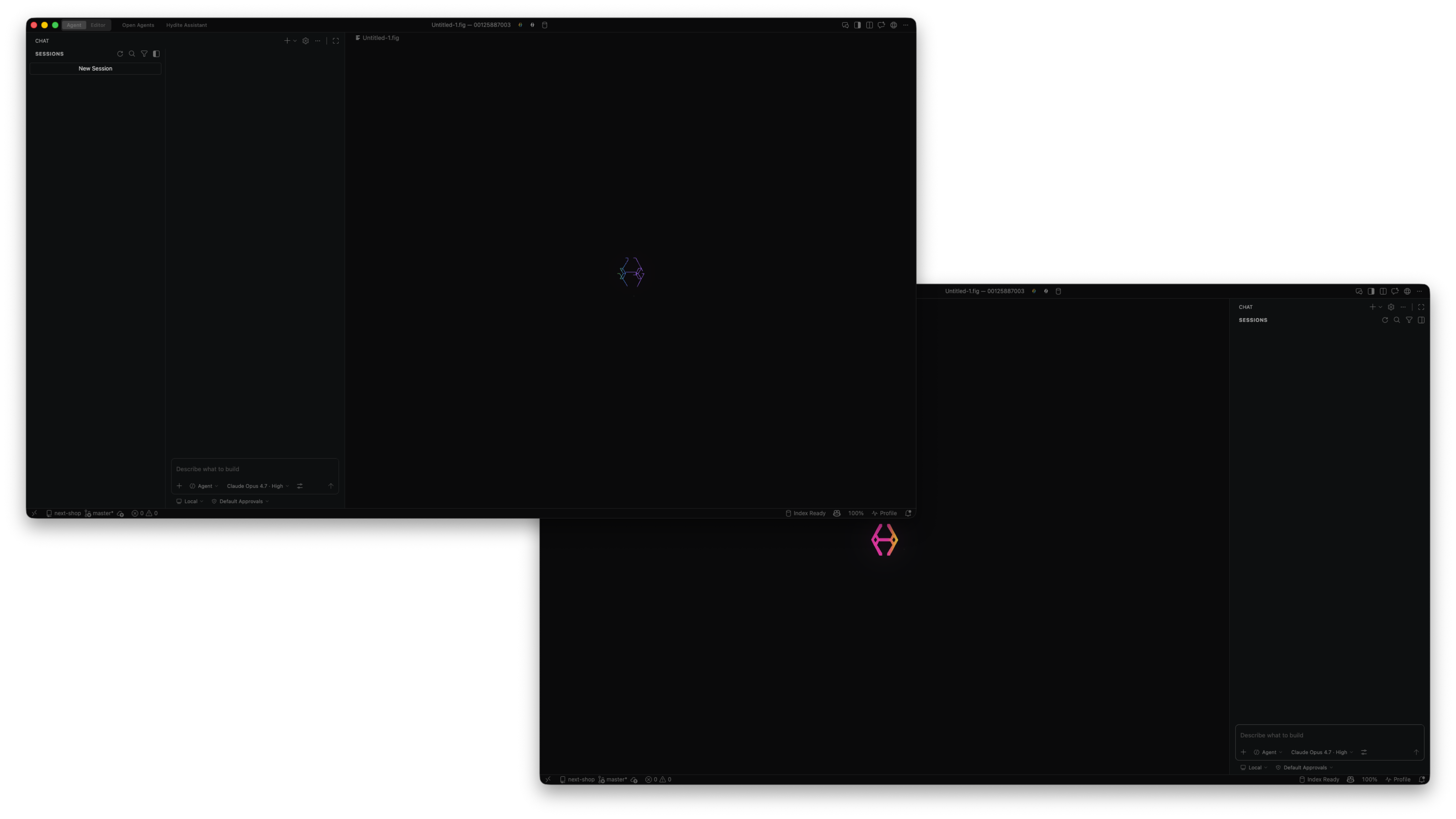
You don't need a command palette or a settings page. The mode toggle lives in the IDE's top-left (the same pill shown in the hero image at the top of this page). Click it, or hit Cmd/Ctrl + ., to flip between Agent / Edit.
Switching is conversation-scoped:
- Switch to Agent: the current chat goes multi-step. Context from your Edit session carries over so Agent can build on it.
- Switch to Edit: the current chat collapses to single-shot diffs. If your cursor is on a selection, Edit uses that selection as its target.
The pill also lets you change defaults: which mode opens by default, the keyboard shortcut, and per-project memory — project A defaults to Edit, project B defaults to Agent, the IDE remembers.
5. High Privacy mode — a separate switch in the input box (bottom-left)#
Many AI editors' "privacy mode" only covers autocomplete. Hydite is different — both Agent and Edit fully honour High Privacy mode.
5.1 Where to flip it#
High Privacy is a separate switch that only appears in Agent mode (Edit's scope is small enough that it doesn't independently call the cloud).
Once you're in Agent mode, look at the bottom-left of the input box — click that pill to enter / leave High Privacy:
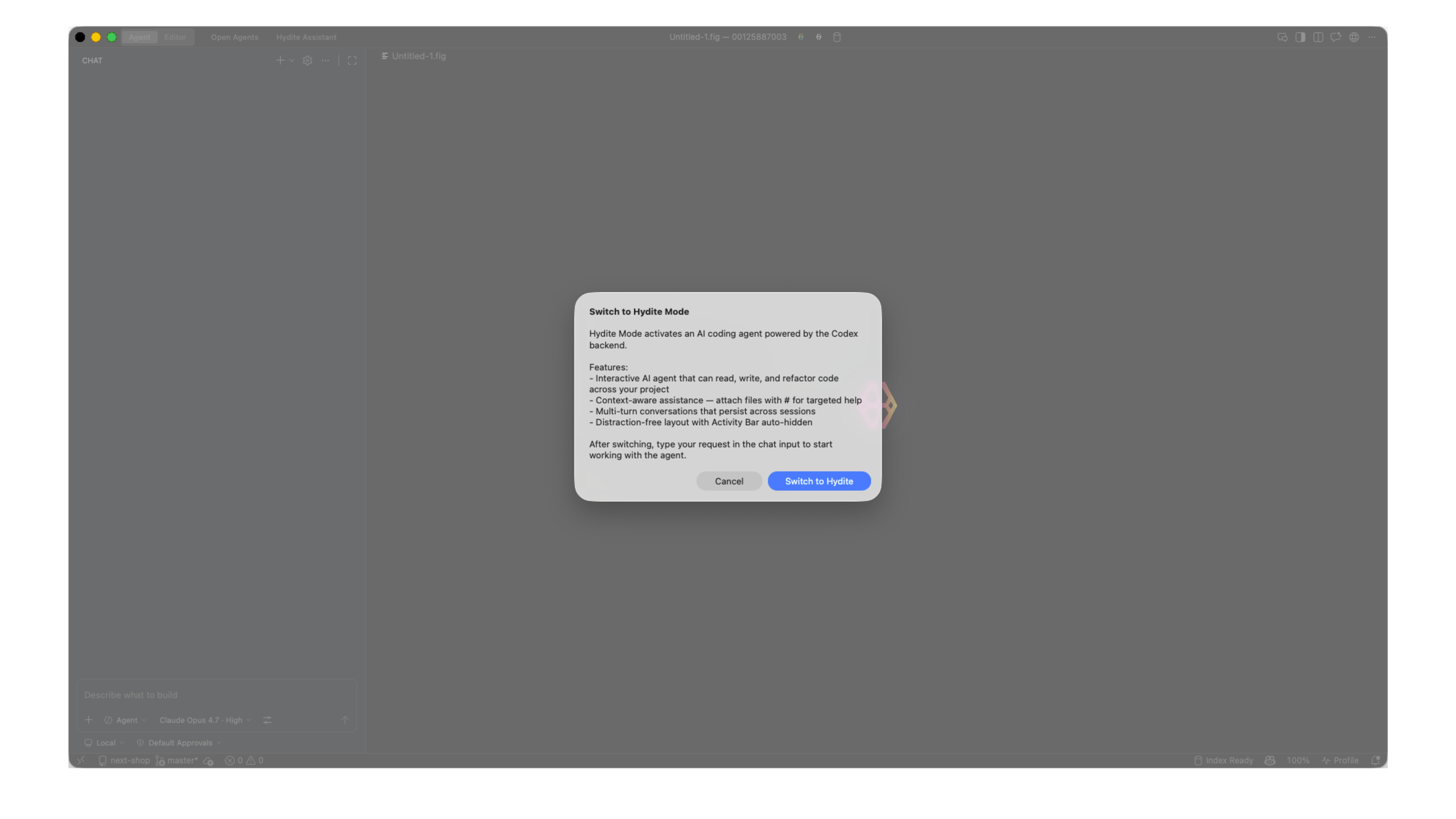
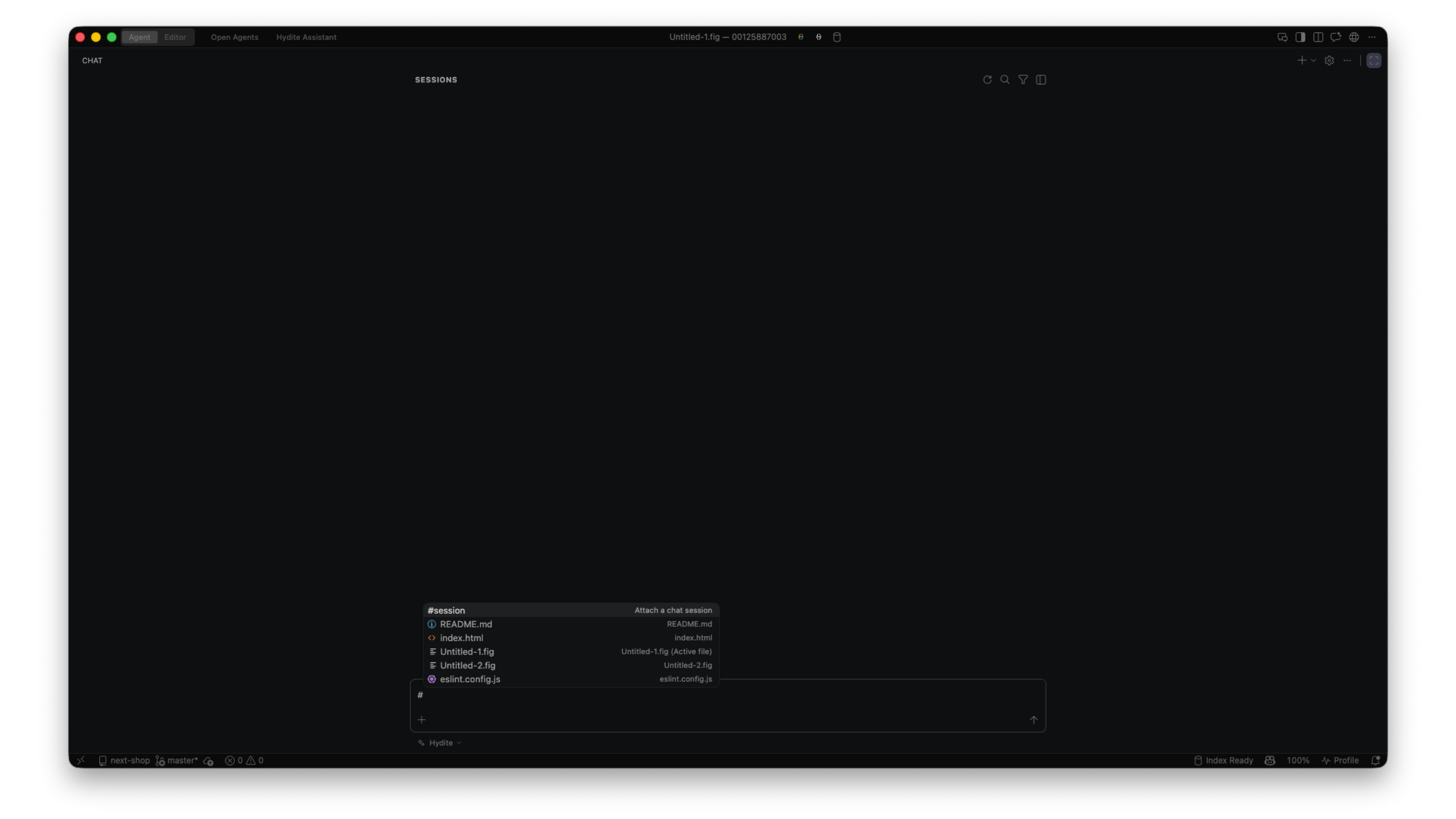
Clicking it opens a detailed scope panel where every privacy axis is visible and individually confirmable:
5.2 What Agent looks like under High Privacy#
| Privacy axis | Behaviour |
|---|---|
| Code leaves machine | ❌ Never |
| Semantic index | Built and stored locally |
| Inference | Local models only (Ollama / vLLM / self-hosted OpenAI-compatible) |
| Agent tool sandbox | Commands, files, network calls gated by the local sandbox |
| Terminal / command exec | Network can be disabled; directories can be allowlisted |
Translation: in finance / government / classified projects, Agent still runs multi-step — its "brain" just stays inside your data centre.
Once enabled, the input-box pill gets a lock indicator and the status bar continuously reminds you that nothing leaves your machine.
6. Decision tree#
1┌──────────────────────────────────────────────┐2│ What am I changing? │3├──────────────────────────────────────────────┤4│ 1–2 spots, clear target → Edit │5│ Multi-file / cross-module / tests → Agent │6│ Not sure, want a plan first → Agent │7│ Classified project → High │8│ Privacy + │9│ either │10└──────────────────────────────────────────────┘7. FAQ#
Q: Can Edit hand off to Agent mid-session? A: Yes. Click the top-left pill to switch to Agent — Agent inherits Edit's conversation context and continues.
Q: I changed my mind mid-Agent. What now?
A: Esc to interrupt. Anything Agent did inside its worktree / temp branch can be rolled back in one click.
Q: Can Agent still call cloud models in High Privacy? A: Cloud models are off by default. If you've allowlisted specific cloud models, you'll get an explicit second confirmation.
Q: Why don't I see the High Privacy switch in Edit mode? A: High Privacy is designed for Agent's multi-step execution. Edit only reads the current selection and only returns a diff — it has no independent path to the cloud. If you want local inference for Edit too, flip the global "local models only" setting.
Q: Can I block Agent from touching certain files?
A: Yes — add the path to a project-level .hydite/agent-deny.glob. The Agent sandbox will refuse to read or write.
8. Next steps#
- Learn about Agent's parallel-agent capabilities → Agent Hub guide (rolling out)
- Configure High Privacy mode → Privacy & Sandboxing guide (rolling out)
- Full keymap for Edit mode → Keybindings reference (rolling out)